Live Spelling - Reset Dictionary: Difference between revisions
No edit summary |
No edit summary |
||
| Line 2: | Line 2: | ||
For SME8: | For SME8: | ||
# Right click on misspelled word and select Spelling... | # Right click on misspelled word and select Spelling... | ||
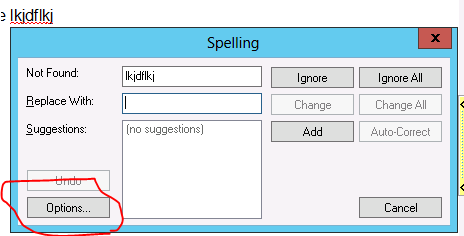
# Click Options in the lower left corner of that screen. | # Click Options in the lower left corner of that screen. <br> [[File:spelling1.png]] | ||
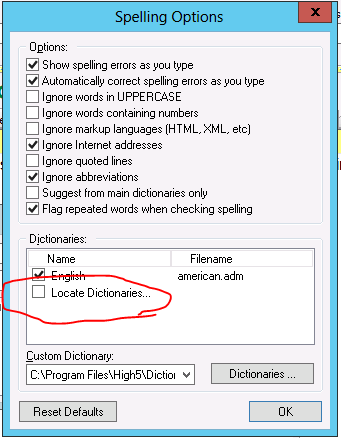
# Click Locate Dictionaries. | # Click Locate Dictionaries. <br> [[File:spelling2.png]] | ||
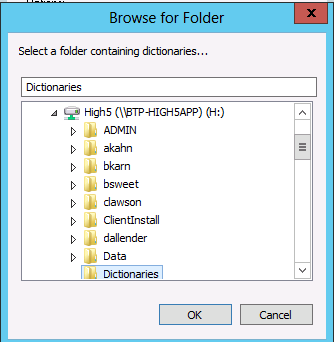
# Go to the SME directory, select Dictionaries. and select Ok [[File:spelling3.png]] | # Go to the SME directory, select Dictionaries. and select Ok <br>[[File:spelling3.png]] | ||
For Previous versions of SME: | For Previous versions of SME: | ||
Revision as of 23:10, 23 April 2014
If you have users reporting that the live spell check feature is showing all words as misspelled, you can follow these steps to reset the dictionary: For SME8:
- Right click on misspelled word and select Spelling...
- Click Options in the lower left corner of that screen.
- Click Locate Dictionaries.
- Go to the SME directory, select Dictionaries. and select Ok


For Previous versions of SME:
Reset Dictionary:
Log in as the user
Go to an order or proposal
Go to the Work Requested tab
Click Edit
Highlight some misspelled text
Right Click on the word and select Spell Check from the context menu

From the Spelling window click Options in the lower left corner

From the Spelling options click on the Language tab
If the ‘Choose language dictionary’ is blank click the dropdown and select a dictionary

If no dictionary is showing click on Locate Dictionaries

Navigate to your High5 Software SME executable folder and locate the Dictionaries folder
Click Ok
Your dictionary should now be set up for your user