Difference between revisions of "Export Search Data to Excel"
Jump to navigation
Jump to search
| Line 1: | Line 1: | ||
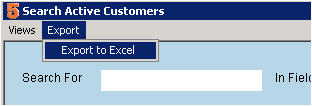
| − | + | # In Search Active Customers window, click Export and select Export to Excel. [[File:ExportToExcel.jpg]] | |
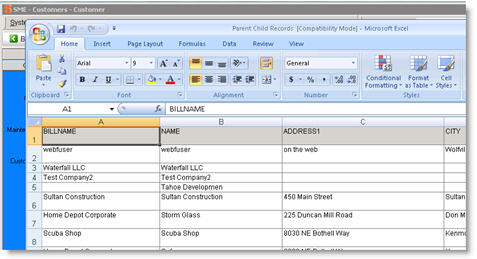
| − | + | # In the window that opens, Click OK and Excel will launch will your customer data. | |
| − | + | # Use the Excel tools to manipulate the data. [[File:Excel.jpg]] | |
| − | [[File:ExportToExcel.jpg]] | + | # [[Excel on Hosted Server]] |
| − | |||
| − | |||
| − | |||
| − | |||
| − | |||
| − | |||
| − | |||
| − | [[File:Excel.jpg]] | ||
Latest revision as of 15:57, 17 March 2014
- In Search Active Customers window, click Export and select Export to Excel.
- In the window that opens, Click OK and Excel will launch will your customer data.
- Use the Excel tools to manipulate the data.
- Excel on Hosted Server

