Mass Order Editor: Difference between revisions
Jump to navigation
Jump to search
No edit summary |
No edit summary |
||
| Line 27: | Line 27: | ||
# Login to [[High5Hub]] or the mass order editor link | # Login to [[High5Hub]] or the mass order editor link | ||
## In the Hub select Applications>Utilities>Mass Order Editor. If you do not have this function for your login please contact High 5 Software representative to enable it. | ## In the Hub select Applications>Utilities>Mass Order Editor. If you do not have this function for your login please contact High 5 Software representative to enable it. | ||
# | # Show or Hide the columns you want to show | ||
## [[File:MassOrderEditor4.png]] | |||
# Search and Filter the orders you want to change by using the following: | |||
## Search filter | |||
## Open orders button to show all the open orders | |||
## My Orders button to show only the orders assigned to you | |||
## Technician drop down to show only the orders assigned to that tech | |||
## [[File:MassOrderEditor3.png]] | |||
# Select the orders you want to change by click on the order to highlight | |||
## [[File:MassOrderEditorHighlight.png]] | |||
# Change the orders using the following: | |||
## Change button with the drop down to field. The to field will change depending on the change drop down selection | |||
## [[File:MassOrderEditorChange.png]] | |||
# Select the Change button to initiate the changes | |||
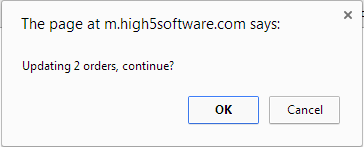
## A confirmation screen will appear and show the number of orders to be changed. Make sure the number of orders you selected matches the confirmation screen. | |||
## [[File:MassOrderEditorConfirm.png]] | |||
Revision as of 15:34, 25 February 2015
Mass Order Editor is a rapid batch processing application allowing a huge increase in productivity of your operations.

Features of Mass Order Editor:
- Filter order based on numerous conditions to focus in on specific orders to change.
- View many orders at once in a summary format
- Multiple select many orders for changing
- Search orders through a filtering smart search
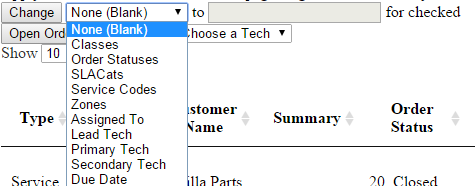
- Make changes to orders all at once based on the changes needed. Change any of the following
- Close orders
- Void orders
- Change Order status
- Classes (for QuickBooks class tracking)
- SLA categories
- Service Codes
- Zones
- Assigned To for assigning techs to orders
- Lead Tech
- Primary Tech
- Secondary Tech
- Due Date

Operation of Mass Order Editor
The following is a typical process for the mass order editor:
- Login to High5Hub or the mass order editor link
- In the Hub select Applications>Utilities>Mass Order Editor. If you do not have this function for your login please contact High 5 Software representative to enable it.
- Show or Hide the columns you want to show
- Search and Filter the orders you want to change by using the following:
- Search filter
- Open orders button to show all the open orders
- My Orders button to show only the orders assigned to you
- Technician drop down to show only the orders assigned to that tech

- Select the orders you want to change by click on the order to highlight
- Change the orders using the following:
- Change button with the drop down to field. The to field will change depending on the change drop down selection

- Select the Change button to initiate the changes
- A confirmation screen will appear and show the number of orders to be changed. Make sure the number of orders you selected matches the confirmation screen.