SME Hosted Server: Difference between revisions
Jump to navigation
Jump to search
Created page with "High 5 Software provides hosted virtual server for SME and QuickBooks, for more information about this service see Hosting for QuickBooks and SME or contact sales@high5softwa..." |
No edit summary |
||
| Line 8: | Line 8: | ||
* Note that the login name and password for the server, may be different from your SME login and password. | * Note that the login name and password for the server, may be different from your SME login and password. | ||
Steps to access hosted server | Steps to access hosted server, Direct Remote Desktop Approach | ||
# | # Open Remote Desktop Connection from Windows, Mac, or Linux system | ||
## In windows, you can get to Remote Desktop Connection by selecting by searching for "remote" in window icon search or Windows 8 search tool. | |||
# Remote Desktop Connection will allow you to enter your URL or IP address, see [[file:RemoteDesktop.png]] | |||
## Select Connect | |||
## Select Other user | |||
## Type in your user name as provided by High5 | |||
## [[file:RemoteLogin.png]] | |||
## Type in your password which will be sent in a separate email | |||
## Select "Remember my credentials" if you want to remember on your current computer | |||
## Select Ok | |||
## For the identity screen, select "Don't ask me again for connections to this computer" | |||
## Select Yes | |||
## [[file:RemoteIdentity.png]] | |||
## SME will either launch automatically or you will be in the server and can launch SME. | |||
Revision as of 23:58, 1 August 2013
High 5 Software provides hosted virtual server for SME and QuickBooks, for more information about this service see Hosting for QuickBooks and SME or contact sales@high5software.com
This wiki explains how to access your hosted server. You will need the following information intially from High 5 Software:
- URL or IP address of your server
- Login name for the server
- Password for the server
- Note that the login name and password for the server, may be different from your SME login and password.
Steps to access hosted server, Direct Remote Desktop Approach
- Open Remote Desktop Connection from Windows, Mac, or Linux system
- In windows, you can get to Remote Desktop Connection by selecting by searching for "remote" in window icon search or Windows 8 search tool.
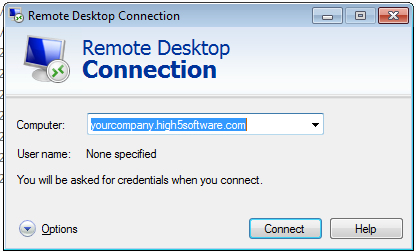
- Remote Desktop Connection will allow you to enter your URL or IP address, see
- Select Connect
- Select Other user
- Type in your user name as provided by High5
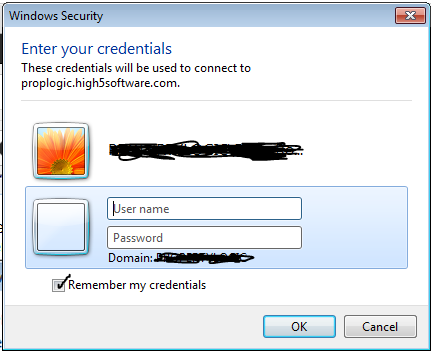
- Type in your password which will be sent in a separate email
- Select "Remember my credentials" if you want to remember on your current computer
- Select Ok
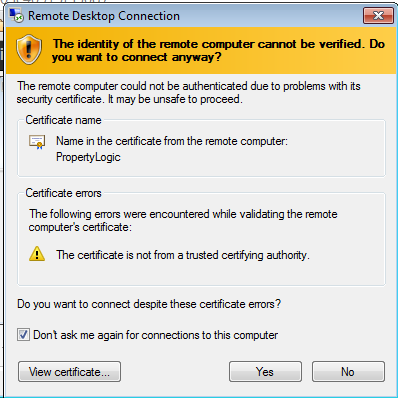
- For the identity screen, select "Don't ask me again for connections to this computer"
- Select Yes
- SME will either launch automatically or you will be in the server and can launch SME.


